

When to design within Canva
- Social media graphics
- Print-only documents
- Web/digital graphics
Canva is NOT for designing:
- Slide-based presentations
- PDF fliers, documents, publications that will be sent out digitally
- Video
Canva approval process
- Design – Start with a Miami template (preferred) or start from scratch.
- Submit for Approval – Be sure to answer the required questions to give us context.
- Review/Edit – Review required and suggested changes. Rinse and repeat as necessary.
- Download/Distribute – Follow-through with your accessibility promises!
Tips and tricks
Tip #1 – Use the provided brand assets
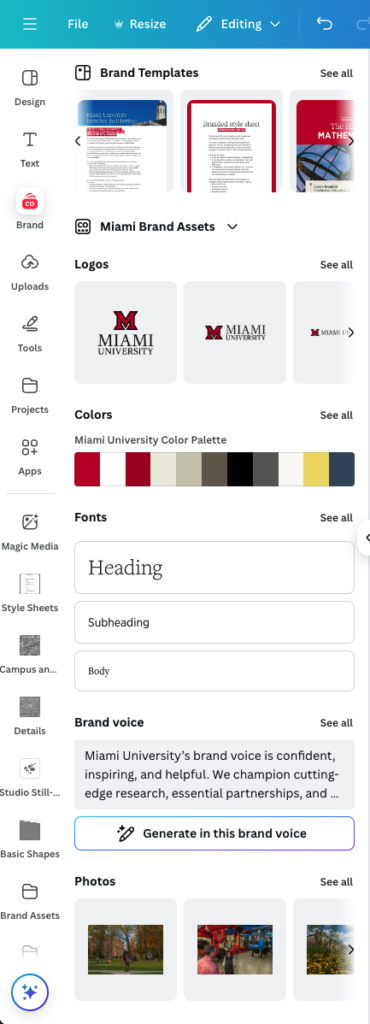
Brand assets, including editable elements, can be found on the left under the Brand tab in the design editor. In this tab you will find:
- Brand templates – Templates for postcards, full-page ads, Instagram posts, trifold brochures, etc.
- Logos – Primary and secondary logos, beveled-M’s, and wordmarks. Review logo usage guidelines.
- Color palette – Review brand color guidelines.
- Fonts – Review brand typeface guidelines.
- Photos – Photos taken by our campus photographers. Review photography use guidelines.
- Graphics – Frames, lines, gradients, and wedges. Review common element guidelines.
- Icons – Icons relating to ur campus, culture, classrooms, and traditions. Review iconography guidelines.
- Lock-ups – These can be found on the left under the “Projects” tab when in the design editor. Select that tab and then use the search to quickly get to your department’s lock-up logo.
Tip #2 – Utilize the style sheet
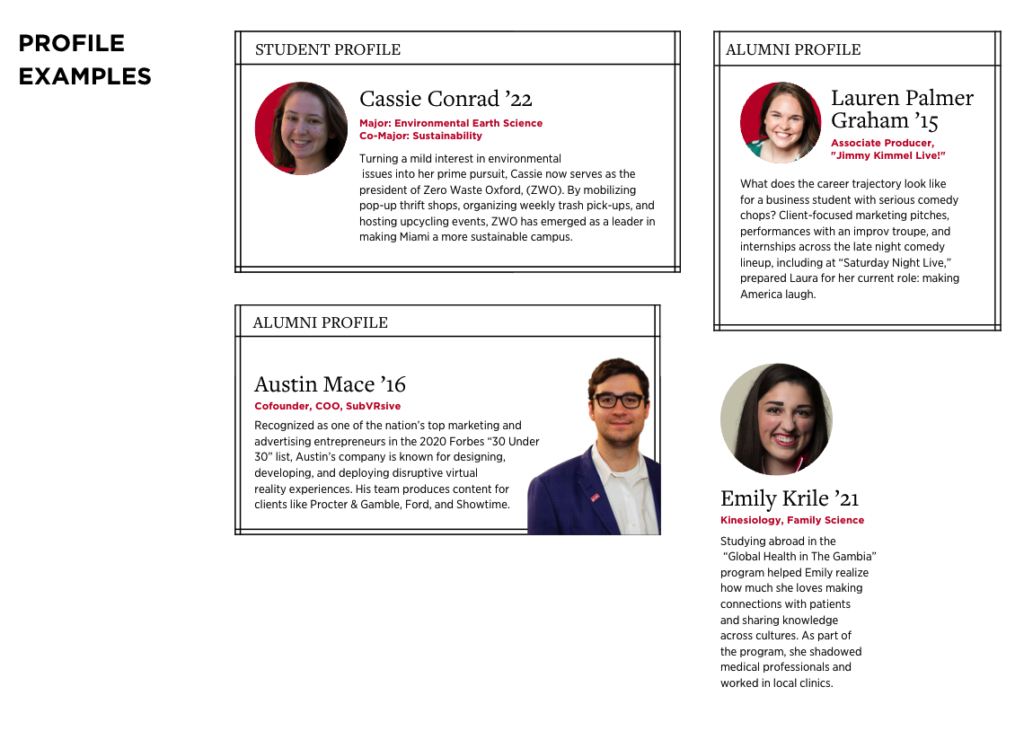
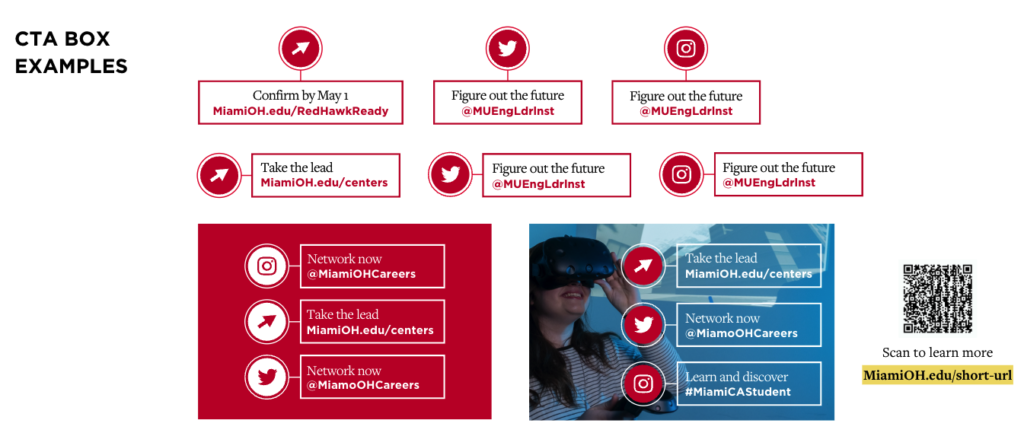
Use our style sheet to easily copy/paste design elements into your project. The style sheet can be found on the left under the “Brand” tab, in the “Brand Templates” section. In the style sheet you can find shapes, photo frames, editable tables, display options for profiles, sidebars, photo brackets, strokes, stats, quotes, CTA’s. There are also examples of ways to combine text styles.
To use the style sheet, open the template in a separate tab or window from where you’re editing your design. This will allow you to easily copy and paste from the style sheet document into your own project.
Tip #3 – Use the PhotoShelter and Frame Maker apps
Connect the PhotoShelter app in Canva to easily browse our campus photo archive and to select images to use in Canva designs.
Use the Frame Maker app to create your own custom frames and image masks.
Tip #4 – Be an accessibility ally
When using Canva for web, Canvas, or email graphics, ensure accessibility in the distribution tool. For example, add alt text in the CMS when uploading Canva images. If the distribution tool lacks accessibility features, the documents or graphics should be created in a different program that enables you to make the piece accessible upon creation, such as Adobe InDesign, Google Docs, Word, Google Slides, or PowerPoint.
If using Canva, use Canva’s in-app Design Accessibility tool. It reviews alt text, color contrast, and typography.
Contact Miami’s AccessMU team at [email protected] if you have any questions regarding creating accessible content. They also have a number of resources available on their website to help create accessible documents.
Tip #5 – Be bold in your designs
Previously, the typeface / font “Gotham” in our Brand Kit could not be bolded or italicized. Now you can bold URLs, emails, and more without making an new text box!
Want a Canva account?
Faculty, staff, and student workers may request a license by submitting a Canva License Application. Brand Overview Training and Canva Training are prerequisite courses.